Your phone hits red halfway through a ranked match, and you still want to finish the night. Here is how to save battery while playing mobile games: lower brightness, cut background activity and use your power mode early.
For more on the topic, browse our guide to mobile games.
| Item | Value |
|---|---|
| iPhone Low Power Mode Auto-Lock | 30 seconds |
| Adaptive Power trigger for Low Power Mode | Battery below 20% |
| Android’s guide: practical tips to extend battery | Eight |
| Android dark theme benefit | Saves battery on OLED screens |
| One of Android’s biggest drains named | Screen brightness |
Figures come from Apple Support’s Low Power Mode page and Android’s battery guide (dated Jan 23, 2025). Menus and behaviour can change with updates, so check the source before you rely on them.
Why games drain a battery so fast
A game keeps your screen lit, your processor busy and often your network connection active, all at once. Few other apps ask for all three for an hour at a time.
Android’s own guide says your screen is “one of the biggest battery drainers”, which is why most of the quick wins below start with the display. The second big cost is the chip working hard to draw graphics, which also creates heat.
Heat matters because a hot phone wastes power and may slow itself down. If your phone gets uncomfortable, read our guide on how to stop phone overheating while gaming, since the fixes overlap with the ones here.
Save battery while playing mobile games: start with the screen
The display is the easiest place to save power without changing how the game plays. Try these in order:
- Lower the brightness to a level that is comfortable, not the maximum. Android’s guide says reducing it to a comfortable level significantly decreases battery consumption.
- Turn on adaptive brightness, which adjusts to the light around you.
- Shorten the screen timeout so the display does not stay lit during a long loading screen or when you put the phone down.
- Use a dark theme if your phone has an OLED screen, because dark pixels use less power.
Android’s guide says a dark theme can save battery on an OLED screen because individual pixels are turned off to display black. It is free, so it is worth trying.
Use your phone’s power-saving mode
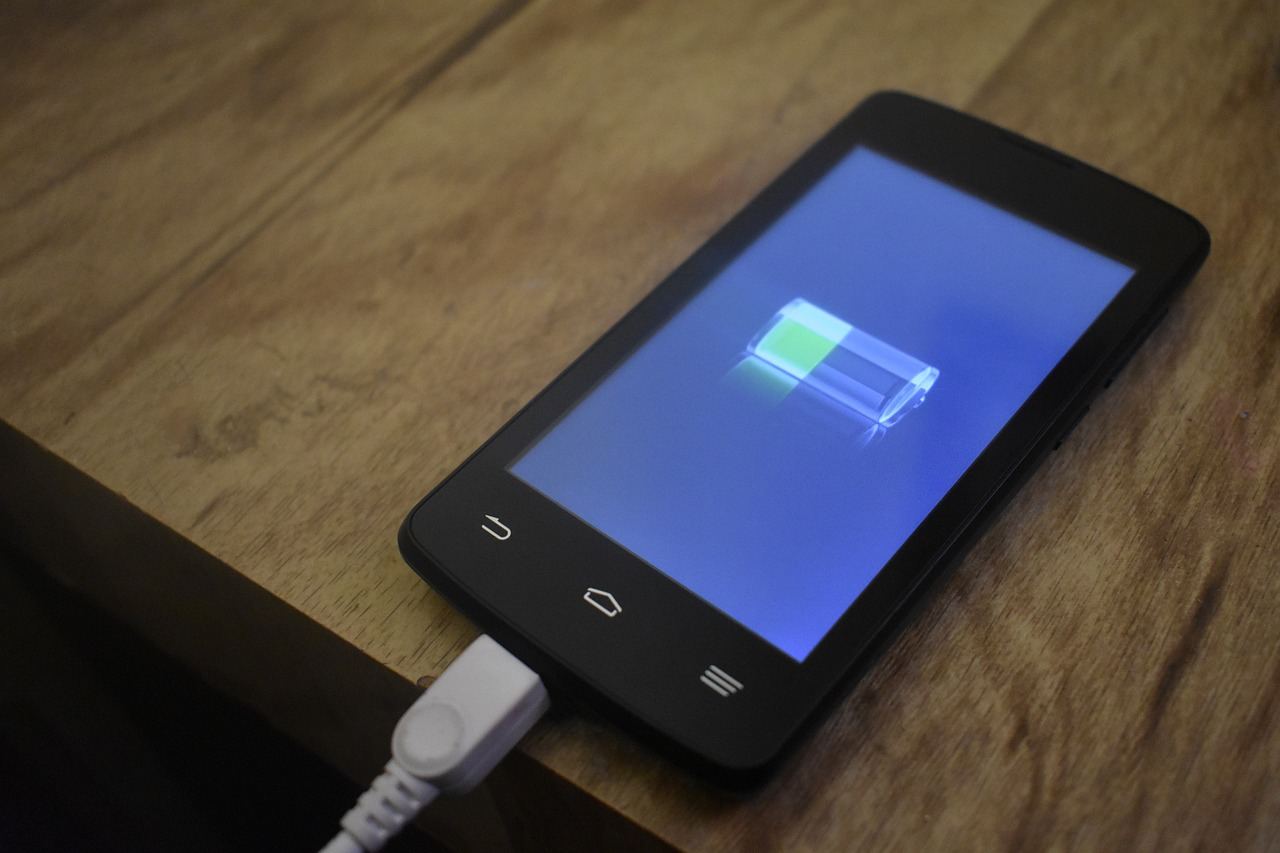
Both major platforms offer a mode that trades a little performance for longer battery life. It is worth turning on before you are desperate, not after.
On iPhone
Apple says that Low Power Mode reduces background activity to extend battery life when the level gets low. It also reduces display brightness, turns off some visual effects and sets Auto-Lock to 30 seconds.
The same page says it turns off automatic downloads, email fetch and Background App Refresh. If your device supports Adaptive Power and it is turned on, Low Power Mode starts when your battery goes below 20%. You can also switch it on yourself from Control Center or Settings.
On Android
Android’s guide describes battery saver mode as a setting that limits certain phone functions to extend battery life. Names and menus vary by brand, so look in your battery settings for something like Battery Saver or Power Saving.
Some phones let you choose when it switches on. Setting it to start earlier gives you more headroom than waiting for the last sliver of charge.
One honest trade-off: a power mode can make frame rates less smooth in demanding games. If a competitive match feels choppy, try it only for slower games, or turn it on between sessions.
Trim what runs in the background
While you play, other apps may still be syncing, updating and sending alerts. Each of those tasks uses a little power and some network data.
- Turn on battery saver mode, which Android’s guide says limits certain phone functions to extend battery life.
- Turn off automatic app updates and cloud syncing until you are charging.
- Silence notifications from chat and social apps, which also keeps your game from being interrupted.
- Switch on airplane mode with Wi-Fi back on for offline games that do not need a mobile signal.
That last tip is simple but useful. A phone hunting for a weak mobile signal can use more power than one on steady Wi-Fi, so a stable connection helps online games too.
Adjust the game itself
Most games have a settings screen with graphics options, and they are some of the most powerful battery tools you have. Look for these:
- Graphics quality: choose a lower preset if the game offers one.
- Frame-rate cap: a lower limit means the chip does less work.
- Effects and shadows: switch off the heaviest ones first.
- Haptics and sound: vibration costs power, so turn it down if you do not need it.
Gacha and live-service titles often animate flashy summons and event screens. If you are curious how those games are built, see what are gacha games for background, then lower their effects if the animations do not add much for you.
Test changes one at a time. If you change everything at once, you will not know which setting made the difference.
Habits that help over a long session
Small routines add up when you play for hours, such as on a train or a long trip.
- Start with a charged phone and a power bank in your bag if you can.
- Take off a thick case if the phone runs hot while you play.
- Avoid playing in direct sun or in a hot car, which stresses the battery.
- Play in short blocks and let the phone rest between matches.
- Do not play while charging with a weak charger, since the phone may heat up and charge slowly.
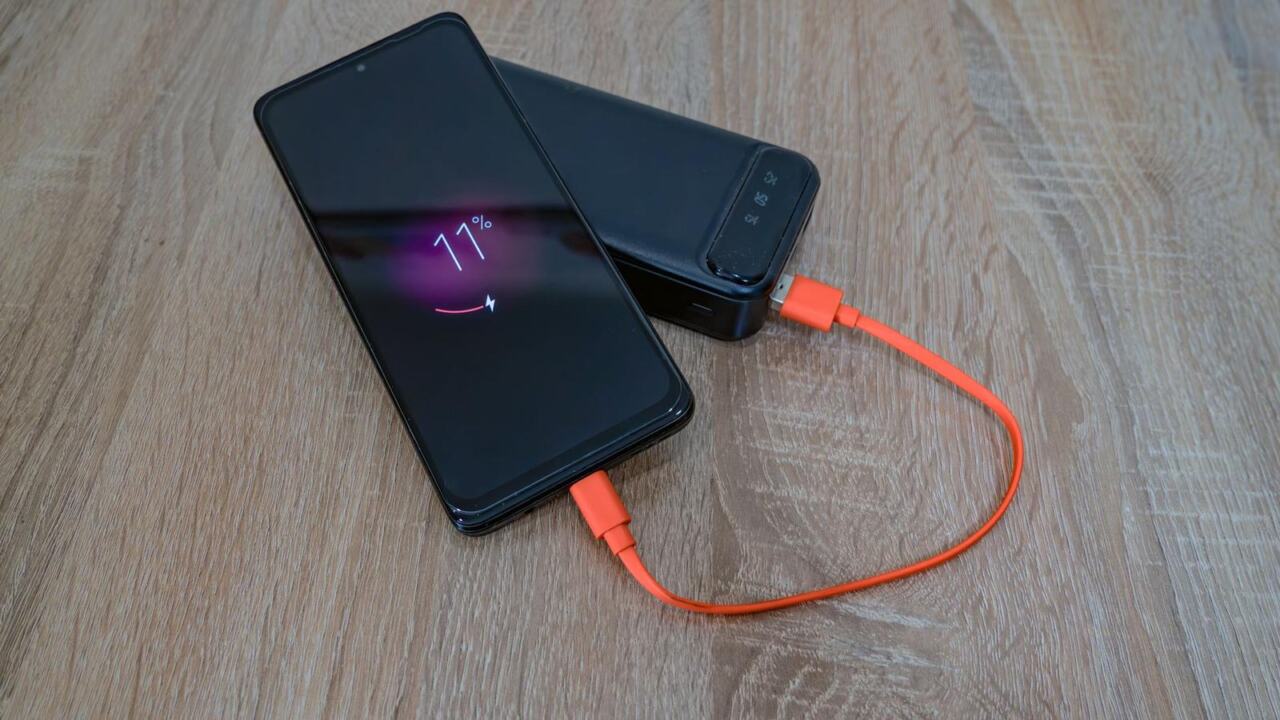
Charging while gaming is fine in an emergency, but it adds heat. If you must, use a good cable and keep the phone out of a warm spot.
It also helps to know your own pattern. Notice which games drain your phone fastest and which settings you can live with, then keep a preset that you reuse every time you sit down to play.
Finally, remember that a battery wears with age. If your phone dies quickly even with every tip applied, the battery itself may be tired, and a replacement from the maker or a reputable repair shop is often the real fix.
None of these steps needs special tools or technical skill. Pick two or three that fit your habits, try them for a few sessions, and keep the ones that clearly help.
Frequently asked questions
Does lowering brightness really make a difference?
Show answer
Yes. Android’s guide names screen brightness as a major drain and says lowering it to a comfortable level significantly decreases battery use. It is the first setting to change.
Should I leave power-saving mode on all the time?
Show answer
You can, but it limits some features, such as background refresh on iPhone. Many players turn it on only for long sessions or when the battery is low.
Does dark mode save battery in games?
Show answer
Only on OLED screens, and only for the parts of the screen that use the dark theme. The game’s own graphics are not changed.
Is it bad to play while the phone charges?
Show answer
It is not forbidden, but charging and gaming together create heat. Heat is hard on batteries, so avoid it where you can.