Thumbs blocking the screen mid-fight? The best mobile game controllers are the ones that pair over Bluetooth, fit your phone and work with the games you actually play, so check game support first.
This guide is part of our gaming section.
| Item | Value |
|---|---|
| Minimum iPhone software for Apple’s controller pairing | iOS 16 or later |
| Standard connection method | Bluetooth pairing mode, then pick the controller in Bluetooth settings |
| Xbox pairing button | Hold the Connect button for a few seconds |
| Where iPhone controller settings live | Settings, General, Game Controller |
| Xbox models Apple lists as supported | Includes Series S, Series X and Elite Series 2 |
Figures come from Apple’s support pages (general controller guide and Xbox guide). They can change with software updates, so check the source before you rely on them.
Which type of controller suits your phone?
Mobile controllers fall into three broad shapes, and the right one depends on where and how you play. Pick the shape first, then worry about brand.
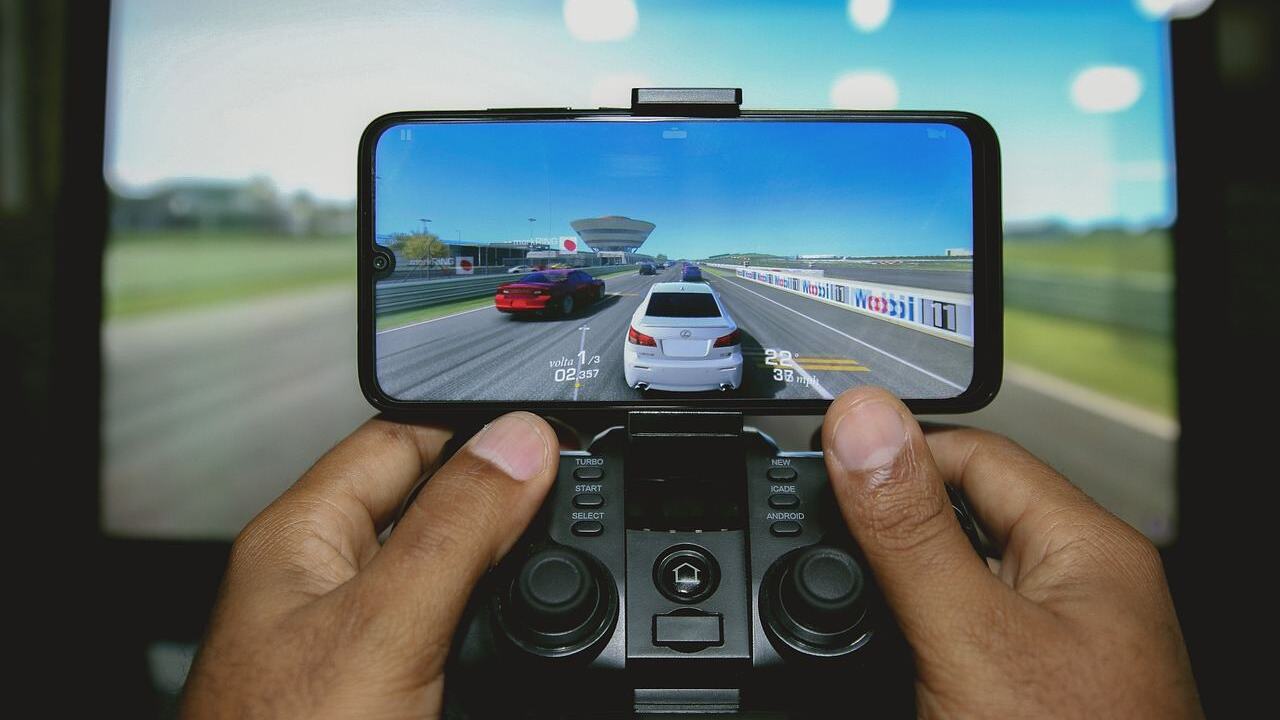
- Clip-on controllers grip both ends of your phone and turn it into a handheld. They are portable and keep the screen between your hands.
- Standalone Bluetooth gamepads look like console pads. You prop the phone on a stand or clamp, which is comfortable for long sessions.
- Console controllers you already own often work too. Apple lists Xbox and PlayStation pads as options for iPhone, so you may not need to buy anything.
If you commute or travel, a clip-on is usually easier to carry. At a desk or on a sofa, a standalone pad tends to feel better.
What to check before you buy
A controller that does not fit your phone or your games is wasted money. Run through this list before paying.
- Phone compatibility. Confirm your phone’s operating system is supported. Apple’s guide, for example, asks for iOS 16 or later on iPhone.
- Phone size and case. Clip-on designs have a maximum width. A thick case may mean taking it off.
- Connection type. Bluetooth is the most flexible. Some controllers also connect by USB cable, and Apple says some can pair automatically when plugged in with a cable that supports data and charging.
- Game support. The controller can pair perfectly and the game may still ignore it. Look in the game’s settings or store page for controller support.
- Battery and charging. Wireless pads need charging as well as your phone. Pass-through charging on clip-ons is a useful extra.
- Return policy. Comfort is personal, so buy from a seller that accepts returns.
How pairing works on iPhone
Apple says the general steps are the same for all Bluetooth controllers that pair with a computer or phone: put the controller in pairing mode, then choose it from the Bluetooth list. You can read the details in Apple’s wireless controller guide, which covers Xbox, PlayStation and other Bluetooth controllers.
Some controllers also pair automatically when plugged straight into the phone with a USB cable that supports data and charging. For Xbox pads, Apple’s Xbox page says to press the Xbox button to turn the controller on, then hold the Connect button for a few seconds.
After pairing, you can often remap buttons. On iPhone, open Settings, tap General, then tap Game Controller. Apple describes this as available for a growing number of controllers, so not every model offers it.
If your Xbox controller shows a message about needing a firmware update, Apple’s Xbox page says to follow Microsoft’s instructions for updating Xbox wireless controllers.
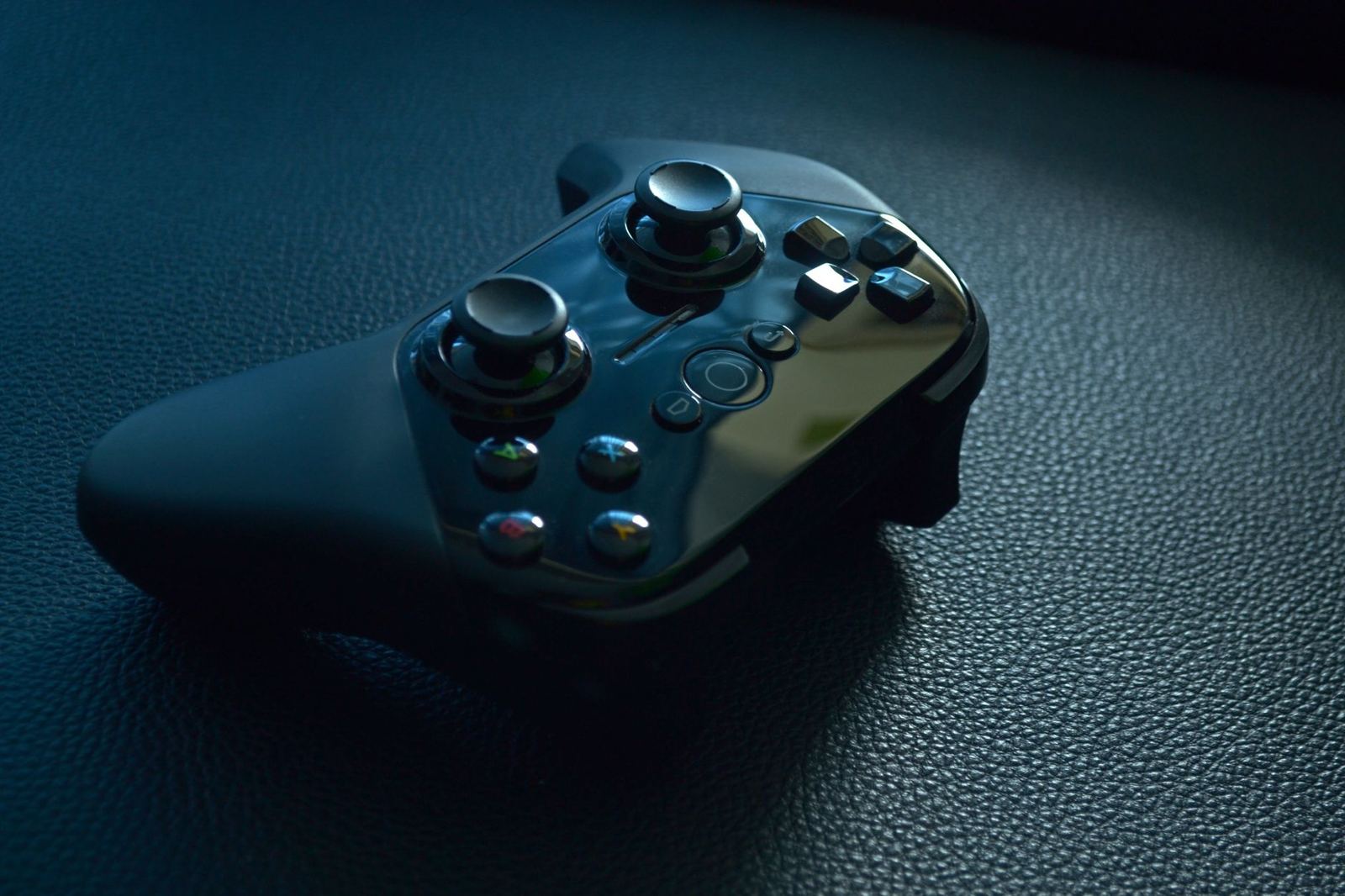
Pairing on Android and troubleshooting
The Bluetooth routine on Android is much the same: switch the controller to pairing mode, open the phone’s Bluetooth menu and select the controller. Menu names vary by manufacturer, so look for the Bluetooth or connected devices screen. Check your phone maker’s help pages for exact wording.
When a controller will not connect, work through the simple fixes first:
- Charge the controller fully, because low batteries cause odd behaviour.
- Remove the old pairing on the phone, then pair again from scratch. Look for the controller in your phone’s Bluetooth settings.
- Switch off other Bluetooth devices that are nearby and connected.
- Update the controller firmware and the phone software.
Do your games support controllers?
This is the part most buying guides skip. Hardware support is only half the story, because each game decides whether it reads controller input.
Many action, racing and platform games do support pads. Touch-first games, such as puzzle or card titles, usually gain nothing from one. Before buying, check the store listing and the game’s settings menu, and test with a game you already own.
Controllers also help when you want to improve. If you are working on your skills, our guide on how to get better at video games explains how consistent practice and a comfortable setup go together.
Streaming is another reason to own one, since many streamed games assume a pad. Our explainer on what is cloud gaming shows how that works on a phone.
Comfort, layout and features that matter
Specifications only tell you so much, because a controller lives in your hands for hours. Weight, grip shape and button spacing decide whether a session feels relaxed or tiring.
Look at the stick and trigger design first. Stick feel is personal, and a clear, clicky D-pad may suit platformers and fighting games. Back paddles and extra buttons can help, but only if the game lets you map them.
Think about the extras you will really use:
- A built-in phone clamp or a separate stand, so the screen sits at a good angle.
- Pass-through charging, so a long session does not drain the phone.
- A carry case, if the controller travels in a bag.
- Software for remapping, though check that it works on your phone.
If you can, hold a controller in a shop or read hands-on reviews from people with similar hand sizes. Treat marketing claims about latency with care, and rely on independent testing where you can find it.
Simple recommendations by situation
- You already own an Xbox or PlayStation pad: try it first. Apple’s guide lists both, and it costs nothing.
- You mostly play on the move: choose a clip-on that fits your phone and case.
- You play at home for long sessions: choose a standalone Bluetooth pad plus a phone stand.
- You play mostly touch games: skip the purchase for now.
This site is independent and has no connection to any controller maker or retailer mentioned. We do not sell products or take enquiries, so compare current prices and reviews yourself.
Frequently asked questions
Can I use my Xbox controller with my iPhone?
Show answer
Yes, if it is a supported model. Apple’s Xbox page lists the Series S, Series X and Elite Series 2 controllers among others. Hold the Connect button, then pick it in Bluetooth settings.
Do all games work with a controller?
Show answer
No. Each game decides whether to support controllers, so check the game’s settings or store page before you buy a pad for it.
Do I need to update my phone?
Show answer
Possibly. Apple’s guide asks for iOS 16 or later on iPhone, so older software may not work properly with the controller.
Can I change the button layout?
Show answer
Often. On iPhone, go to Settings, General, Game Controller and choose your controller. Customisation is not available for every model.